Chapters:
- Chapter 5: “Images” (pp.94-125)
- Chapter 11: “Color” (pp.246-263)
- Chapter 12: “Text” (pp.264-299)
Chapter 3: “IMG”
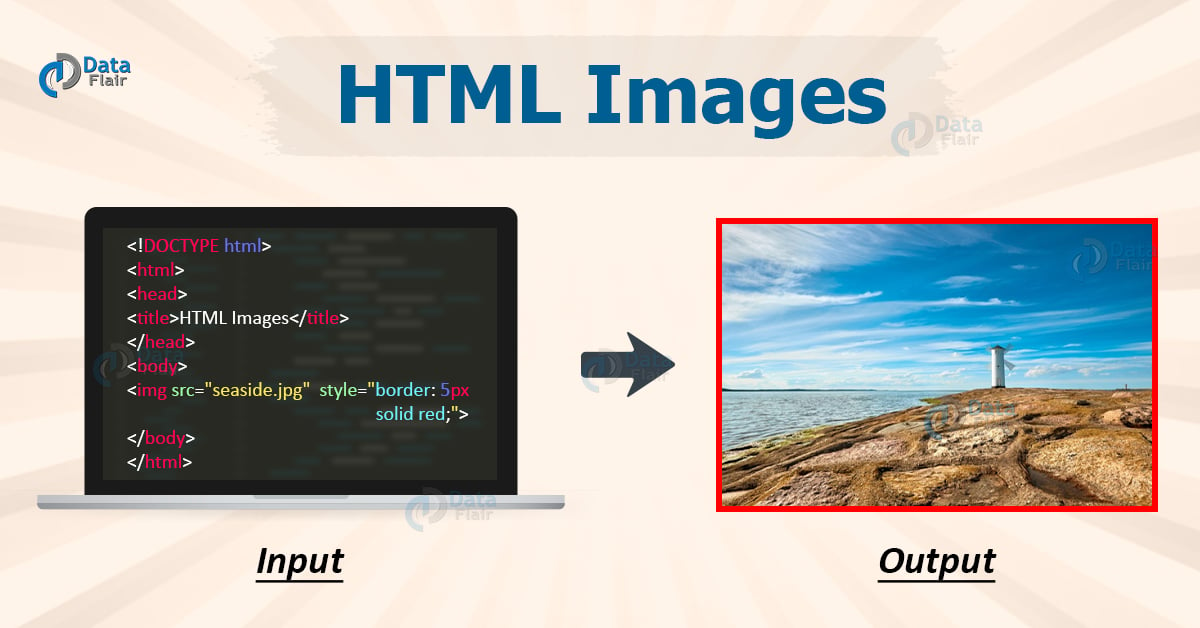
- In order to put a simple image on a webpage, we use the
element. This is an empty element (meaning that it has no text content or closing tag) that requires a minimum of one attribute to be useful —
- src: (sometimes spoken as its full title, source). The src attribute contains a path pointing to the image you want to embed in the page, which can be a relative or absolute URL, in the same way as href attribute values in elements.
Note: You should read A quick primer on URLs and paths to refresh your memory on relative and absolute URLs before continuing.
So for example, if your image is called dinosaur.jpg, and it sits in the same directory as your HTML page, you could embed the image like so:
<img src="dinosaur.jpg">
If the image was in an images subdirectory, which was inside the same directory as the HTML page, then you’d embed it like this:
<img src="images/dinosaur.jpg">
And so on.
Note: Search engines also read image filenames and count them towards SEO. Therefore, you should give your image a descriptive filename; dinosaur.jpg is better than img835.png.
You could embed the image using its absolute URL, for example:
<img src="https://www.example.com/images/dinosaur.jpg">
But this is pointless, as it just makes the browser do more work, looking up the IP address from the DNS server all over again, etc. You’ll almost always keep the images for your website on the same server as your HTML.
chapter11 :colors
-
WHAT : The
<color>CSS data type represents . -
WHY:
<color>can be defined in any of the following ways:-
- Using a keyword (such as blue or transparent). All existing keywords specify a color in the sRGB color space:
-
- Using the RGB cubic-coordinate system (via the #-hexadecimal or the rgb() and rgba() functional notations). These always specify a color in the sRGB color space
-
- Using the HSL cylindrical-coordinate system (via the hsl() and hsla() functional notations). These always specify a color in the sRGB color space
-
-
HOW : Syntax
- The
data type is specified using one of the options listed below.
- The
***Note: Although
-
- Color keywords
Color keywords are case-insensitive identifiers that represent a specific color, such as red, blue, black, or lightseagreen. Although the names more or less describes their respective colors, they are essentially artificial, without a strict rationale behind the names used.
- Color keywords
There are a few caveats to consider when using color keywords:
The color keywords all represent
- plain
- solid colors
- without transparency.
Several keywords are aliases for each other:
- aqua / cyan
- fuchsia / magenta
- darkgray / darkgrey
- darkslategray / darkslategrey
- dimgray / dimgrey
- lightgray / lightgrey
- lightslategray / lightslategrey
- gray / grey
- slategray / slategrey
chapter12: Text
- WHAT : its a properity to style the text
-
HOW: the CSS properties used to style text generally fall into two categories, which we’ll look at separately in this article:
-
- Font styles: Properties that affect the font that is applied to the text, affecting what font is applied, how big it is, whether it is bold, italic, etc.
-
- Color
-
- Font families
-
- Default fonts
-
- Font stacks
-
- Font size
-
- Font styles: Properties that affect the font that is applied to the text, affecting what font is applied, how big it is, whether it is bold, italic, etc.
-
- Text layout styles: Properties that affect the spacing and other layout features of the text, allowing manipulation of, for example, the space between lines and letters, and how the text is aligned within the content box.
-
- Text alignment
-
- Line height
-
- Letter and word spacing
-
- Text layout styles: Properties that affect the spacing and other layout features of the text, allowing manipulation of, for example, the space between lines and letters, and how the text is aligned within the content box.
-

examples:

JPEG vs PNG vs GIF
-
TL;DR
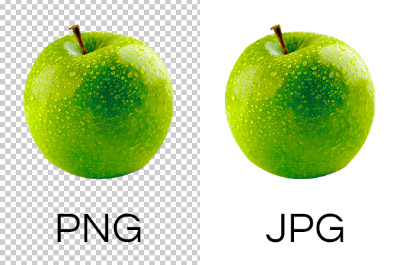
Use JPEG format for all images that contain a natural scene or photograph where variation in colour and intensity is smooth. Use PNG format for any image that needs transparency or for images with text & objects with sharp contrast edges like logos. Use GIF format for images that contain animations. -
JPEG
is a lossy compression specification that takes advantage of human perception. It can achieve compression ratios of 1:10 without any perceivable difference in quality. Beyond this, the compression artefacts become more prominent. Because JPEG compression works by averaging out colours of nearby pixels (read Discrete Cosine Transform), JPEG images are best suited for photographs and paintings of natural scenes where the variations in colour and intensity are smooth. However, if an image contains text or lines, where a sharp contrast between adjacent pixels is desired to highlight the proper shape, this lossy compression technique does not yield good results. -
PNG is a lossless image format using DEFLATE compression. No data is lost during compression and no compression artefacts are introduced in the image. For this reason, a PNG image would retain higher quality than an image than JPEG and would look a lot sharper, it would also occupy more space on the disk. This makes it unsuitable for storing or transferring high-resolution digital photographs but a great choice for images with text, logos and shapes with sharp edges.
/blogmerge/7787ce0e-0c64-4c4f-b285-8b4dbc9e21ef.jpeg)
/blogmerge/cf67f56e-00e6-48c0-a1a4-31a8e3baf0de.jpeg)